Your TV.Your way.
TVora is a free Android app that cleans up your Android TV from your phone. It switches off the adverts, tracking and apps nobody asked for, then gives you a calm home screen you arrange yourself. Everything can be put back.
- Free and open source
- Android 9+ phone
- No account
- v0.1.5
switch off
- Adverts and sponsored rows6
- Tracking and analytics7
- Apps nobody asked for8
- Xiaomi extras2
We keep everything you use: Netflix, Prime Video, Live TV and HDMI, the remote and software updates.
Switched off, not deleted
Before anything changes, TVora reads your TV and shows the plan, grouped the way you'd describe it. Keep or switch off any single item under Customise.
things switched off on a Mi TV 4A. Off means asleep: each one can be put back on its own.
Switched off Tap any switch
- Adverts and sponsored rowsBanners and promoted tiles
- Tracking and analyticsViewing data and ad IDs
- Apps nobody asked forPreloads and auto-installs
- Your TV brand's extrasStores, feeds and pop-ups
- Shop and demo modeRetail leftovers, where the TV has them
Always kept
- Live TV and HDMI inputsTuner and sources
- The remote and keyboardEvery button keeps working
- Voice assistantSearch by voice
- ChromecastCasting from phones
- Software updatesSecurity fixes
Nothing is uninstalled. The Switched off list puts any app back with one tap.
Four steps from your sofa
Phone and TV on the same Wi-Fi. TVora walks you through every screen with steps for your TV's brand.
-
STEP 1
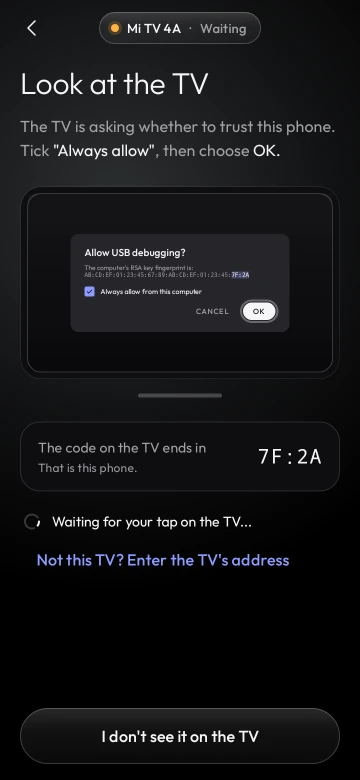
Let the phone in
Turn on debugging in the TV's Developer options. When the TV asks to trust your phone, tick Always allow and choose OK. It's the only fiddly part, and it takes about a minute.
-
STEP 2
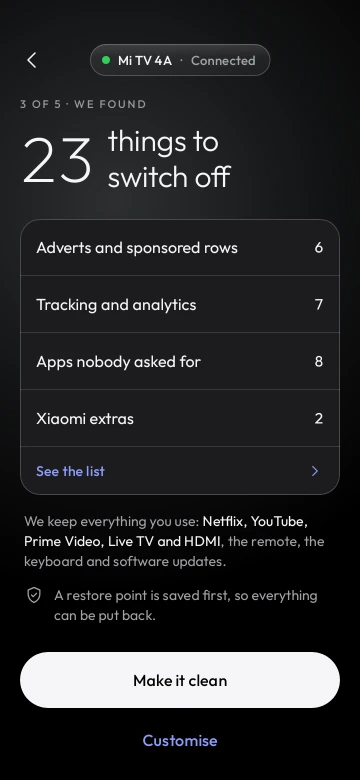
Review the plan
TVora lists every app it would switch off and everything it keeps. Change anything you like under Customise, or tap Make it clean.
-
STEP 3
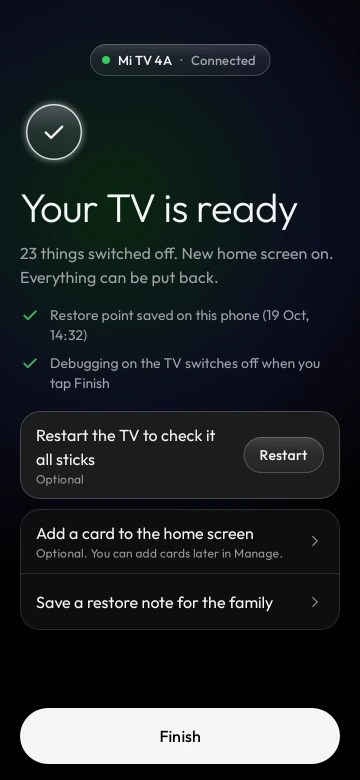
Make it clean
A restore point is saved on your phone first. Then the clutter is switched off and the new home screen goes in. Put the phone down; it buzzes when it needs you.
-
STEP 4
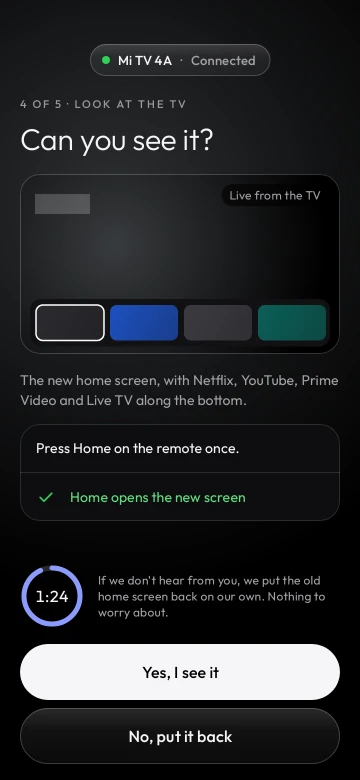
Check it on the TV
Press Home on the remote and confirm you can see it. If you don't answer, TVora puts the old home screen back on its own.
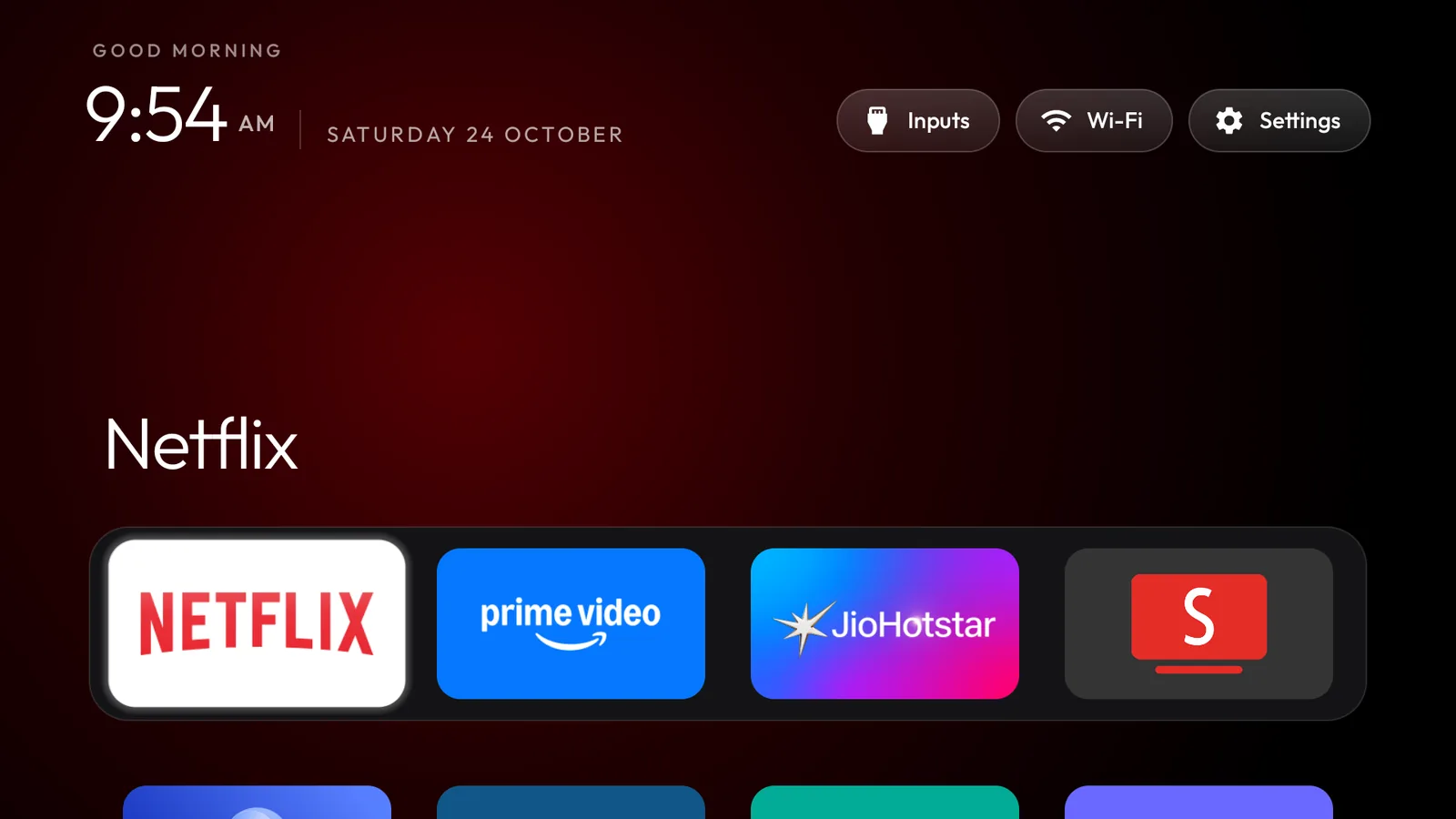
A home screen you arrange yourself
Set it up from your phone, or rearrange it later with the TV remote. Real screenshots from a Mi TV running TVora.
Everything can be put back
TVora records every change it makes, so undo is exact: each app goes back to the state it was in, not simply switched on.
Every original package matched its baseline after a full clean-up, restore and reboot on a Mi TV (MiTV-AXSO0, Android 9). The TV's own home screen came back on its own.
Restore covers the changes TVora recorded. It isn't a backup of app data, logins, firmware or changes made before you used TVora.
- A restore point before the first changeSaved on your phone. Undo everything from it in one go.
- Put back one app at a timeThe Switched off list brings back any single app.
- Save a copy outside the appExport a zip with recovery scripts to anywhere you choose.
- It pauses safely if the connection dropsIf the TV stops answering mid-change, TVora pauses, reconnects and lets you carry on or undo. Nothing else changes until then.
- Undo checks the TV firstUndo everything reads the TV's current state before it previews and before it runs, so it only changes what still needs changing.
- Check for leftovers after updatesA TV software update can switch things back on. TVora finds them and switches them off again.
Between your phone and your TV
TVora has no account, analytics, advertising or server of its own. Your TV records and restore points stay in the app's private storage on your phone.
You approve every change
Your phone's screen lock confirms it's you before TVora changes anything, and a live picture from the TV confirms it's your TV.
Pairing stays private
Pairing codes are used once and never saved. The phone's key lives in Android Keystore, and TVora uses it to find your TV again if its address changes. Reset my key clears it.
Your photo goes to one place
A wallpaper photo is resized, stripped of its metadata and sent only to the TV you picked. The update check reads TVora's public GitHub releases.
Lists for 248 TV models
TVora plans with model lists from the Clean Your TV community, each made on a real TV. A TV that isn't listed gets a careful plan that only switches off what TVora is sure about.
Questions
How do I install TVora?
- On your Android phone, open the latest release.
- Under Assets, tap the file ending in .apk. You don't need a GitHub account.
- Open the downloaded file. If Android asks, allow installs from your browser or file manager.
- Put your phone and TV on the same Wi-Fi, open TVora and tap Start.
What do I need?
An Android phone running Android 9 or newer, and an Android TV or Google TV on the same trusted Wi-Fi network. No computer, account or subscription.
Does TVora delete apps from my TV?
No. It switches apps off, which puts them to sleep. They stay installed, and you can put any of them back from the Switched off list or undo everything from the restore point.
Why does it need debugging turned on?
Debugging over Wi-Fi is how a phone is allowed to change settings on the TV, and the TV asks you to approve your phone first. When you tap Finish, TVora switches debugging off again unless you chose to keep it on.
Newer TVs use Wireless debugging with a six-digit pairing code. TVora handles that too.
What happens if something goes wrong halfway?
TVora stops and tells you what happened. You choose to carry on with the rest or undo what was done. If the new home screen doesn't take over, the old one is put back automatically.
Will it work on my Samsung or LG TV?
No. Samsung uses Tizen and LG uses webOS, and TVora works with Android TV and Google TV. Some TVs, such as Fire TV and some TCL models, get the clean-up but keep their own home screen.
How do I update to a new version?
TVora shows a banner when a new release is out, and Settings has Check for updates. Download the new APK and install it over the old one. Don't uninstall first: your restore points and paired TVs stay.
Is TVora free?
Yes. It's free and open source under the MIT licence, with no ads and no in-app purchases. If it helps you, a star on GitHub is welcome.
Your TV.Your way.
Install TVora on your phone, sit down with the TV remote, and give it five minutes.